solana
How to Stake Solana (SOL) using Phantom Wallet
The creators of Solana unveiled a scalable and secure crypto platform that provides holders with the ability to stake crypto assets and earn
AUG 19, 2021
Last updated SEP 24, 2026 · V2
- Solana changed minimum amount of stake from 0.01 SOL to 1 SOL as of June 18, 2026. The change affects only new stakes. No action is required from users.
- The mobile version of the wallet currently does not allow users to choose a validator for staking so please use web wallet to do so.
The creators of Solana unveiled a scalable and secure crypto platform that provides holders with the ability to stake crypto assets and generate rewards. In How to stake Solana SOL: a beginner’s guide we explore the main aspects of Solana staking. This quick guide will show you how to stake SOL tokens in the Phantom browser wallet.
About Phantom
Phantom Wallet is a simple and convenient non-custodial web wallet with Web3 support and the integration of Ledger hardware wallets as a browser extension. The Phantom Wallet provides SOL storage, transfers, staking, and exchange using the built-in exchange.
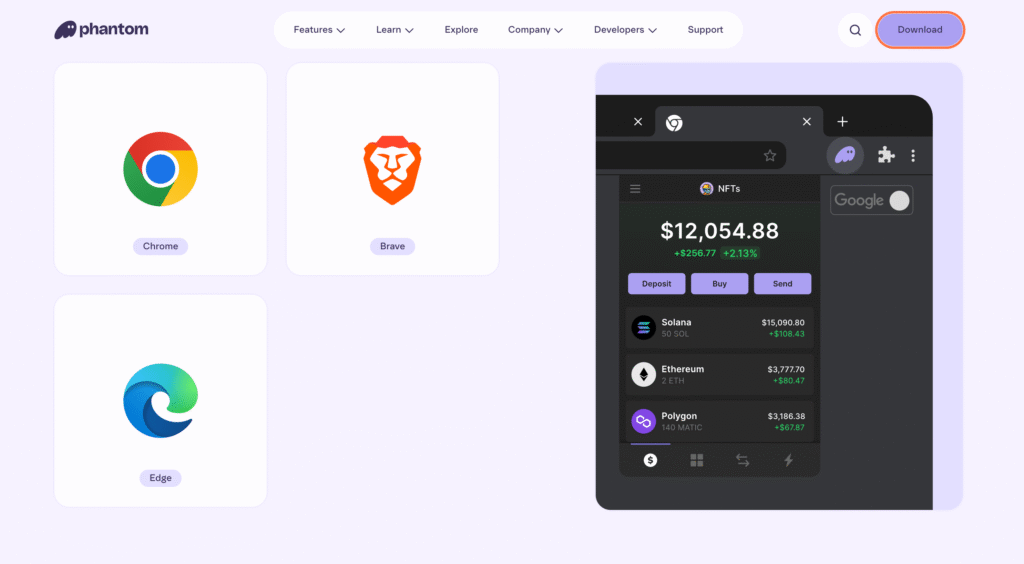
In addition to SOL, the Phantom crypto wallet supports USD Coin (USDC) tokens and non-fungible tokens (Collectibles, aka NFTs). The extension works in Chrome, Firefox, Edge, and Brave browsers.
What is Solana
Solana is an innovative, open, and fully decentralized platform for building effective blockchain applications (DApps) and marketplaces in the Web3 environment.
The Solana blockchain provides high scalability and bandwidth, and in terms of transaction processing speed, it can outperform the well-known payment giants. The platform can process up to 65,000 transactions per second against 1,700 on average. The average price of the trx at the moment of writing an article is $0.000582 only and the total transactions count in the network has surpassed 552 B! Solana is actively developing, offering many solutions in the field of DeFi.
How to stake SOL
Before delegating Solana, you need to create (or import) a crypto wallet, and then add tokens to it.
Install the plugin for your browser and create a wallet
Go to the Phantom plugin website and click Add to Chrome.
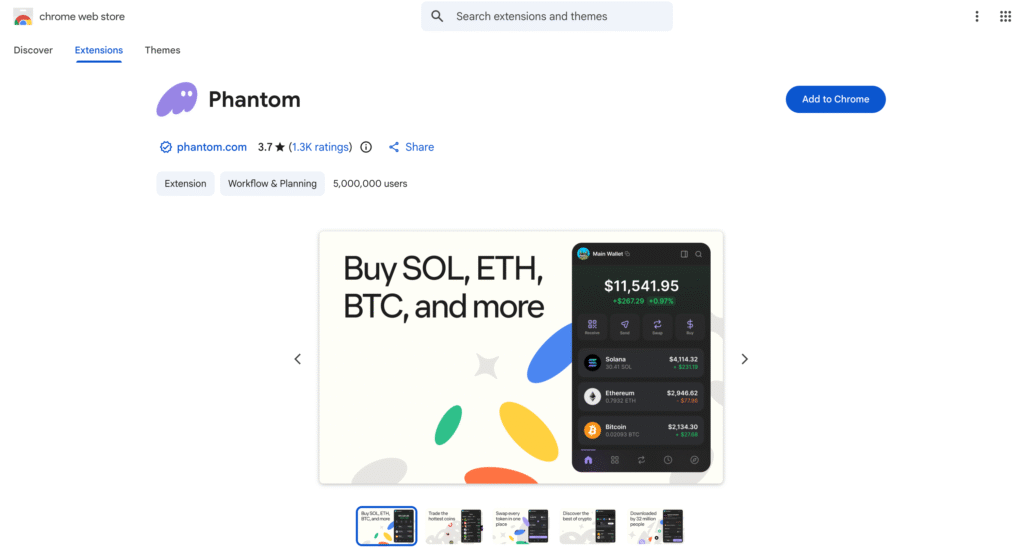
Or visit directly the Chrome Web Store or Firefox’s. Click Add to Chrome to install the extension.
Confirm that you are going to install the Phantom plugin by clicking Add Extension.
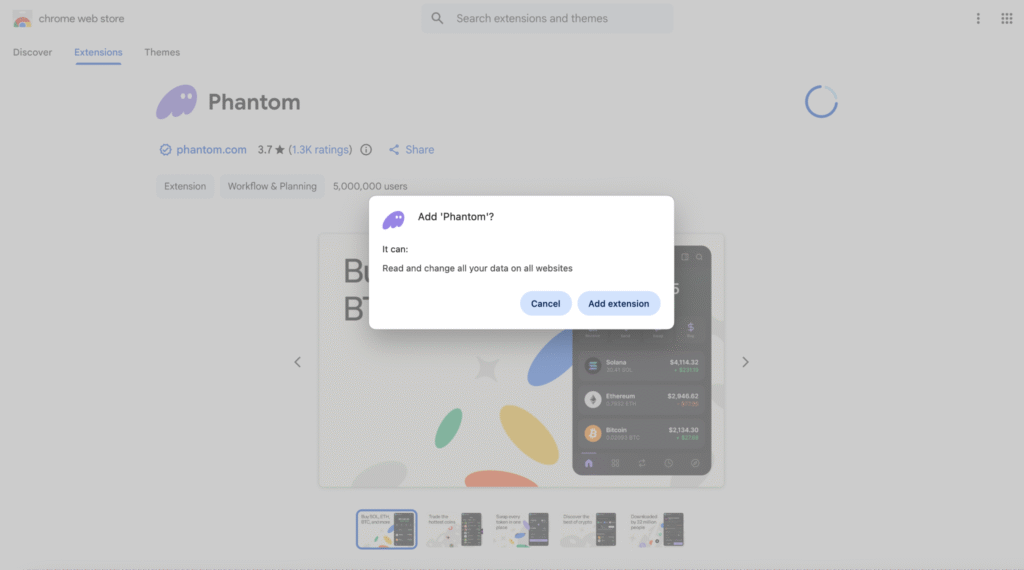
All done! Now you can use the extension. Run the plugin and choose the method that suits you best.
If you haven’t used a SOL wallet before, select Create New Wallet and simply follow the guidelines.
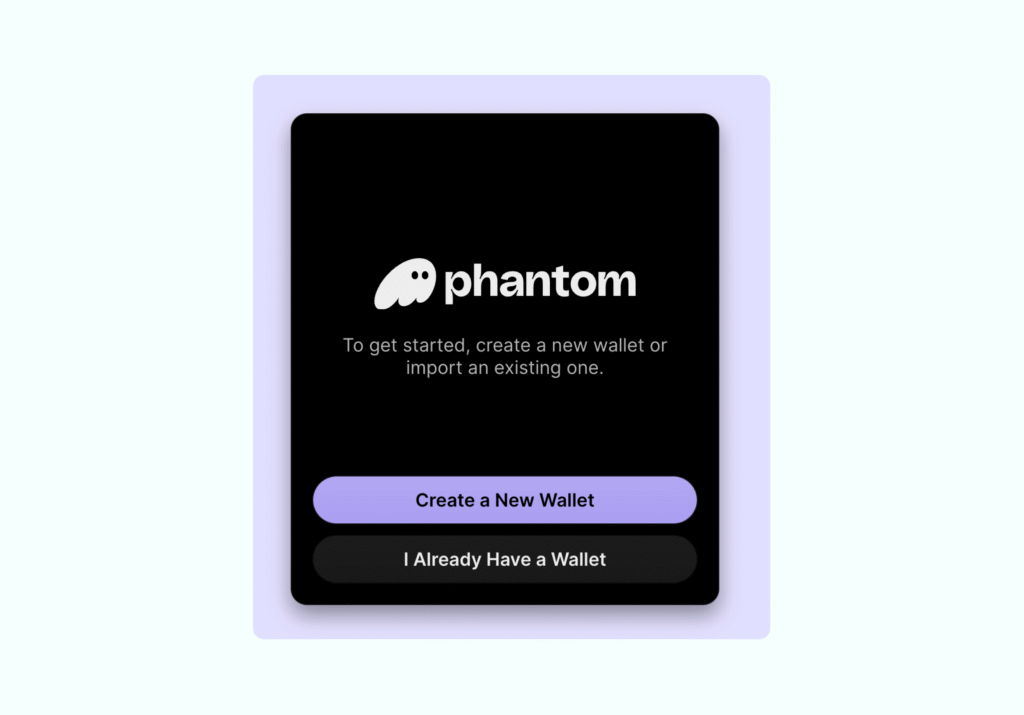
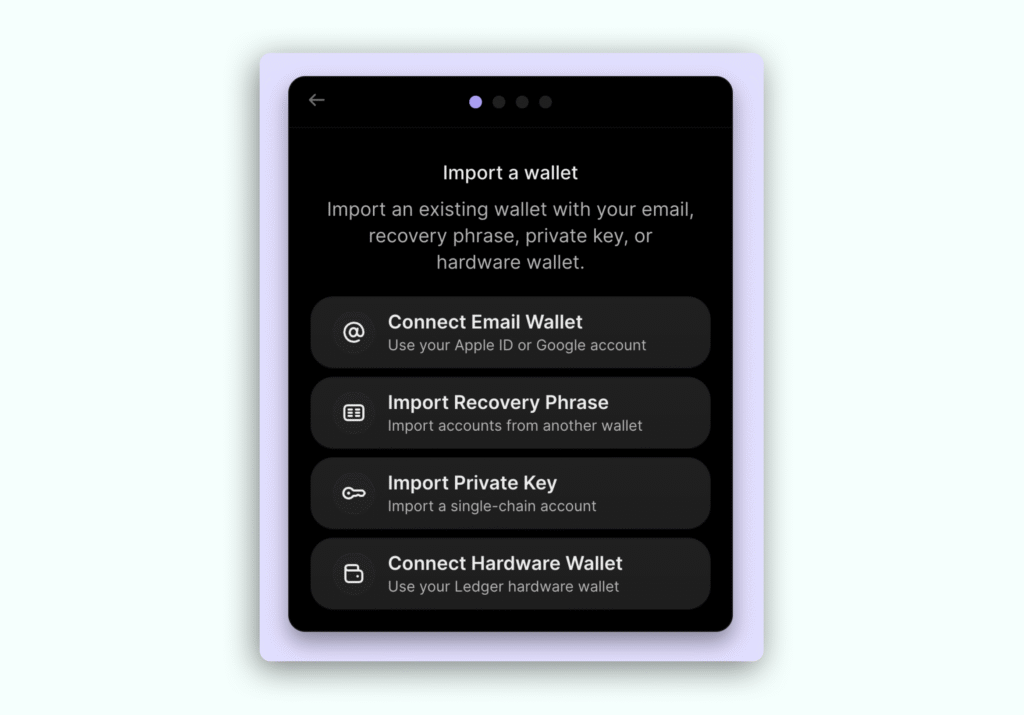
In this guide, we will restore a wallet from a seed. Click on the button Import Recovery Phrase.
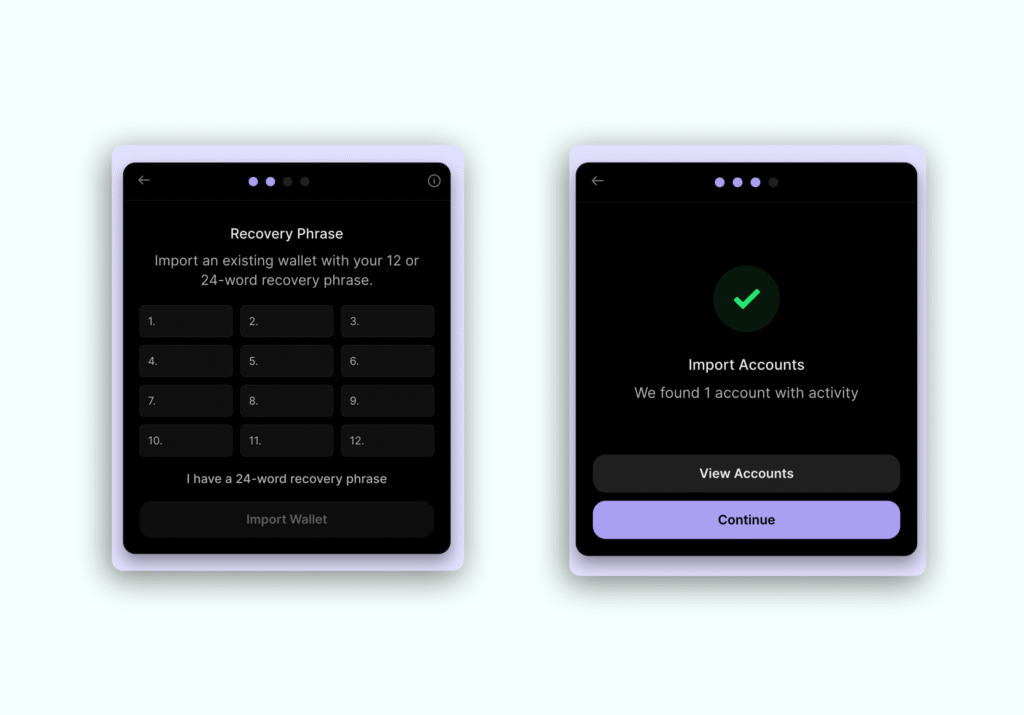
Enter the wallet mnemonic phrase (that you saved in the past) and click Import Secret Recovery Phrase. If for some reason you lost it, create the wallet again and save the seed securely.
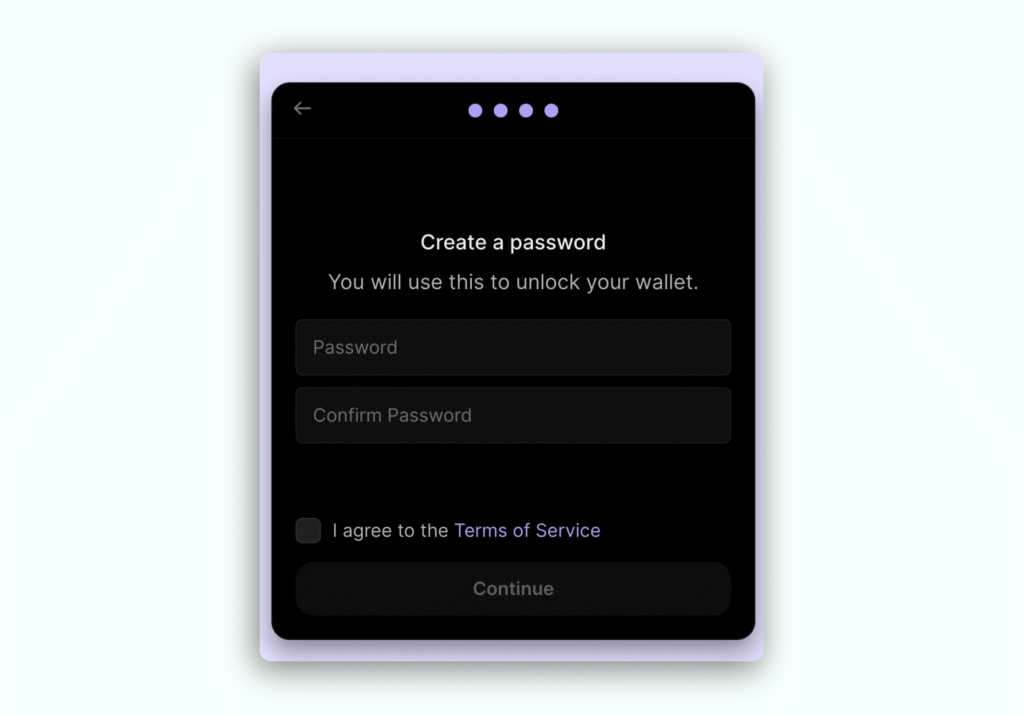
Create and enter a strong password, accept the terms of the user agreement, and click Continue.
The wallet has been created!
To complete the procedure, click on the Get Started button.

Open the plugin and log into Phantom Wallet
You can pin the plugin in the top browser panel for quick access. To do so, click on a “puzzle” icon, select an extension and click on the “pin” icon.
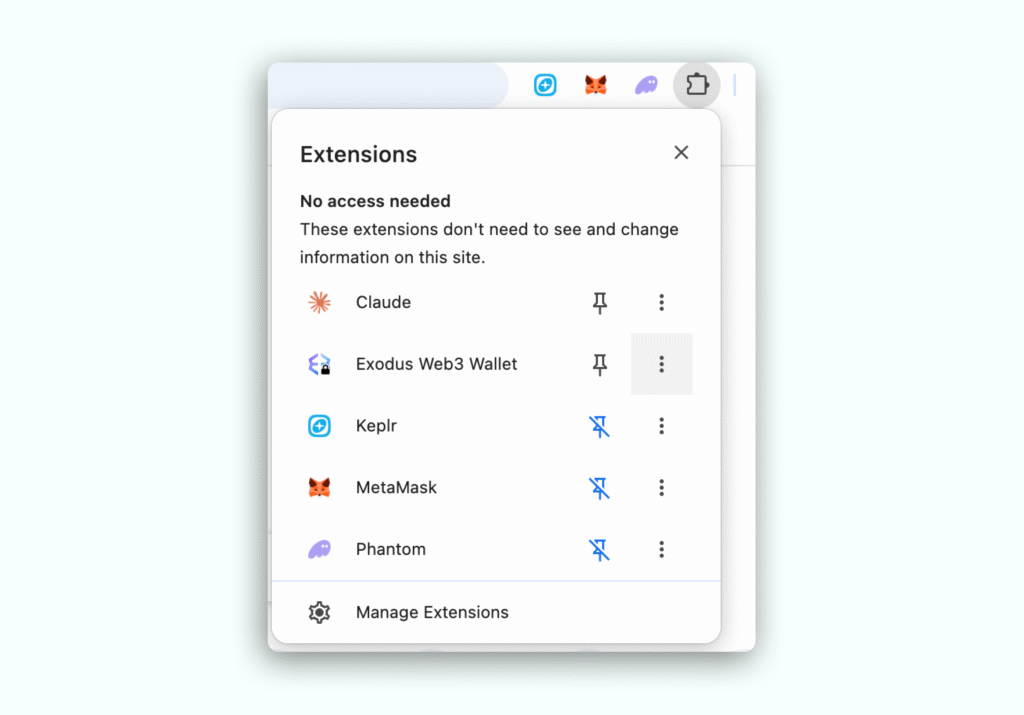
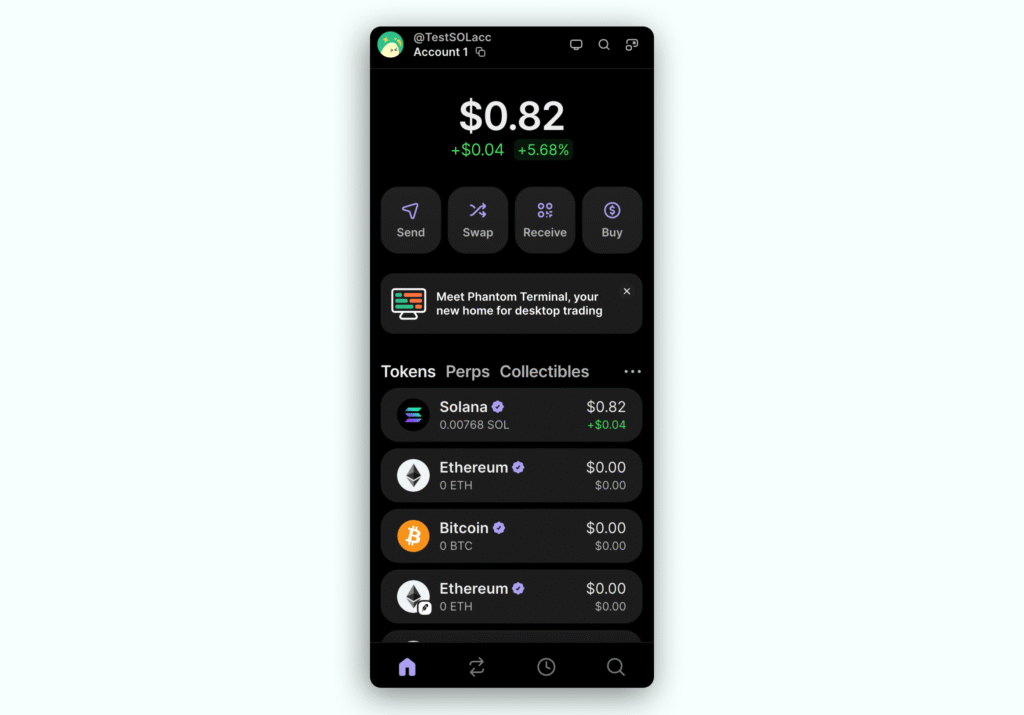
Launch Phantom by clicking on the extension icon. Enter the password you set while creating the wallet and then click Unlock.
You can now use your wallet. The main page displays the balance, wallet address, and available tokens. You can switch between the Tokens, Perps, Collectibles, History, and Search tabs.
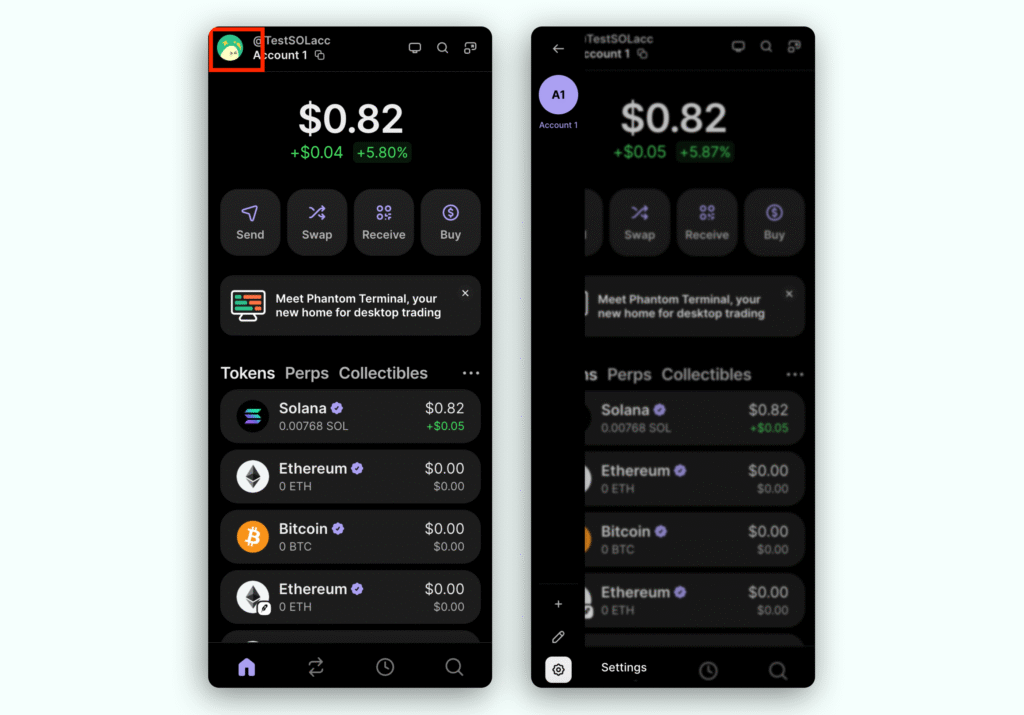
If you need to export or reset the private key, restore the mnemonic phrase, or delete the wallet, visit the Settings menu.
Next, you should fund the wallet.
Add funds to a wallet
Click More → Receive.
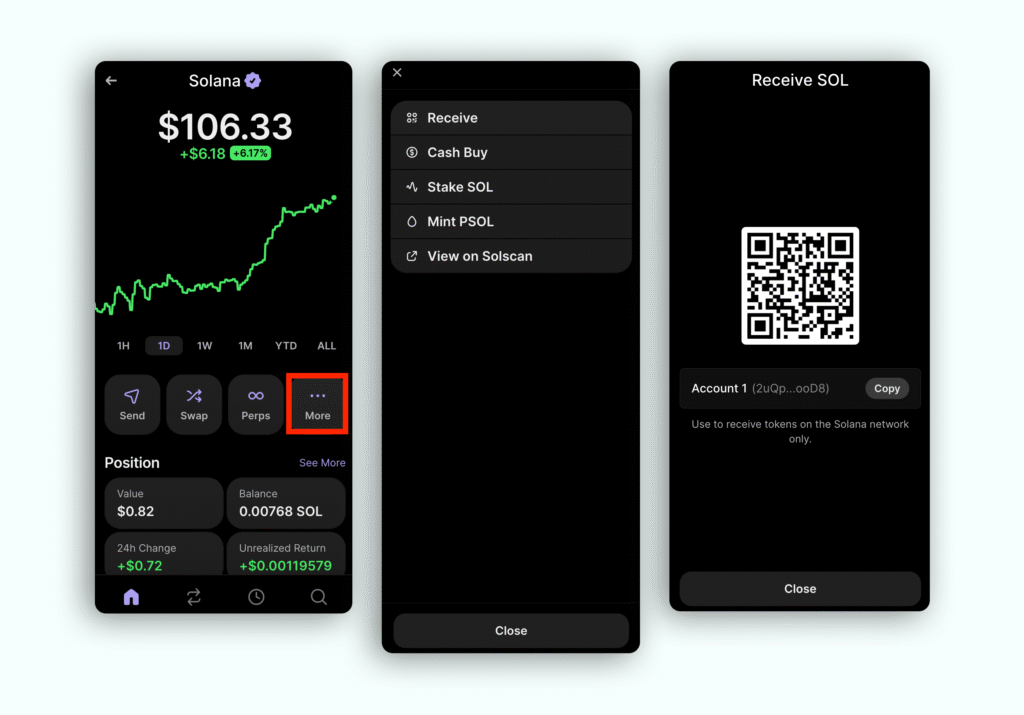
Scan the QR code or copy the wallet address by clicking Copy, and then send Solana tokens to it, or share the details with the sender.
As soon as the network validates the transaction, the tokens will appear on the balance of your crypto wallet.
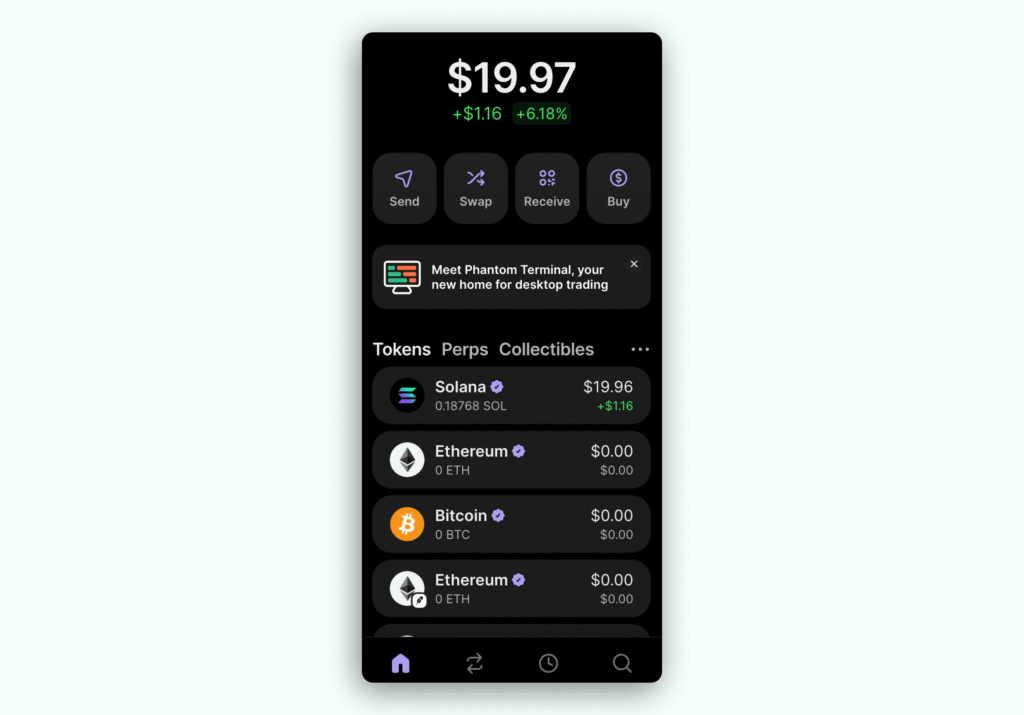
Tokens are in the wallet, and now you can proceed to Solana staking.
Staking SOL Tokens
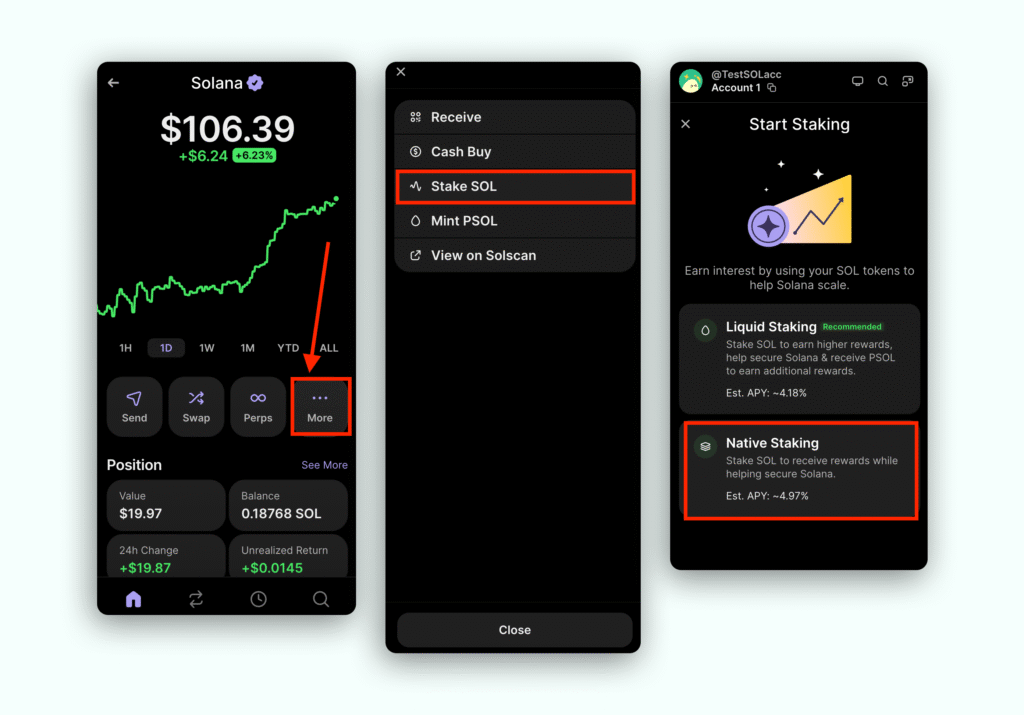
To delegate SOL, go to the Main Menu and click on the Solana account in the first tab of the Phantom app → click More.
Then click Stake SOL and select Native Staking.
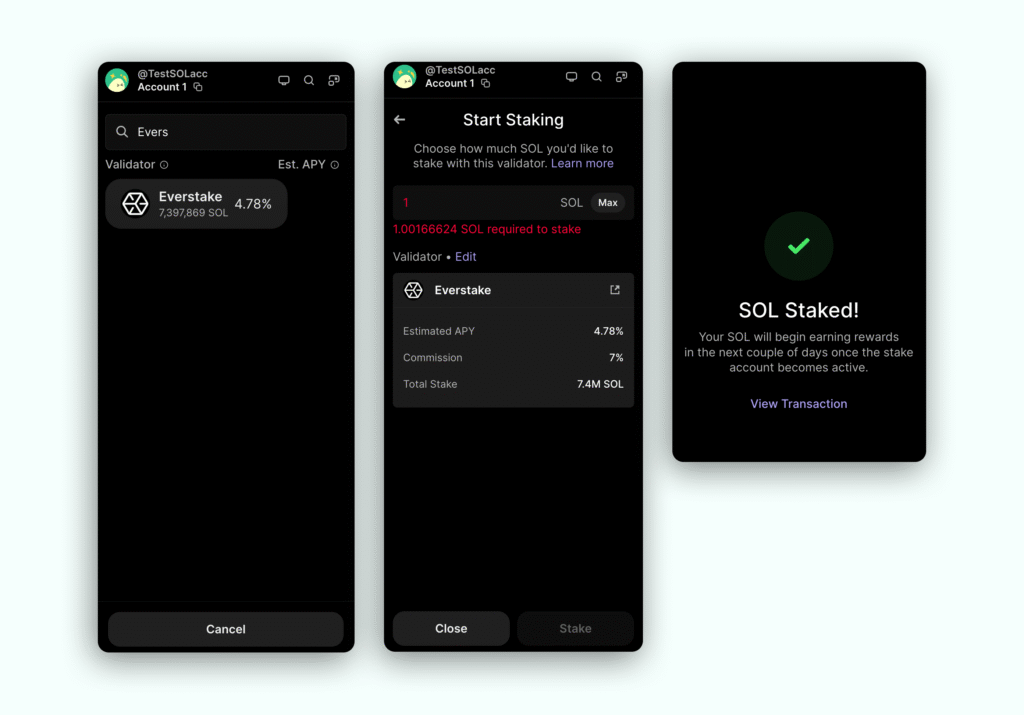
Choose a validator. In the list of validators, you can see how many tokens are staked with each of them and the commission they charge. In this Guide we stake with Everstake for a reference – you are free to choose any validator.
Enter the amount to stake and click Stake. Wait while the transaction is validated by the Solana network. Once the transaction is confirmed, you’ll be able to view the transaction.
Why stake with Everstake?
It’s established: Everstake has run a validator on Solana since testnet.
It’s reliable: Everstake is a large, high-performance validator constantly improving its services and performance and running the enterprise-grade hardware/software with the highly professional specialists onboard. We have vast validating experience in more than 130 PoS blockchains.
It’s simple: we regularly issue staking guides in our blog to help delegators quickly figure out how to delegate assets across different wallets.
Note: Before staking coins, make sure to keep at least 0.05 SOL in your wallet to pay for transactions!
Go back to the wallet home page and click on the Solana wallet again.
Click on the button Other → Your Stakes to check the status of your delegation.
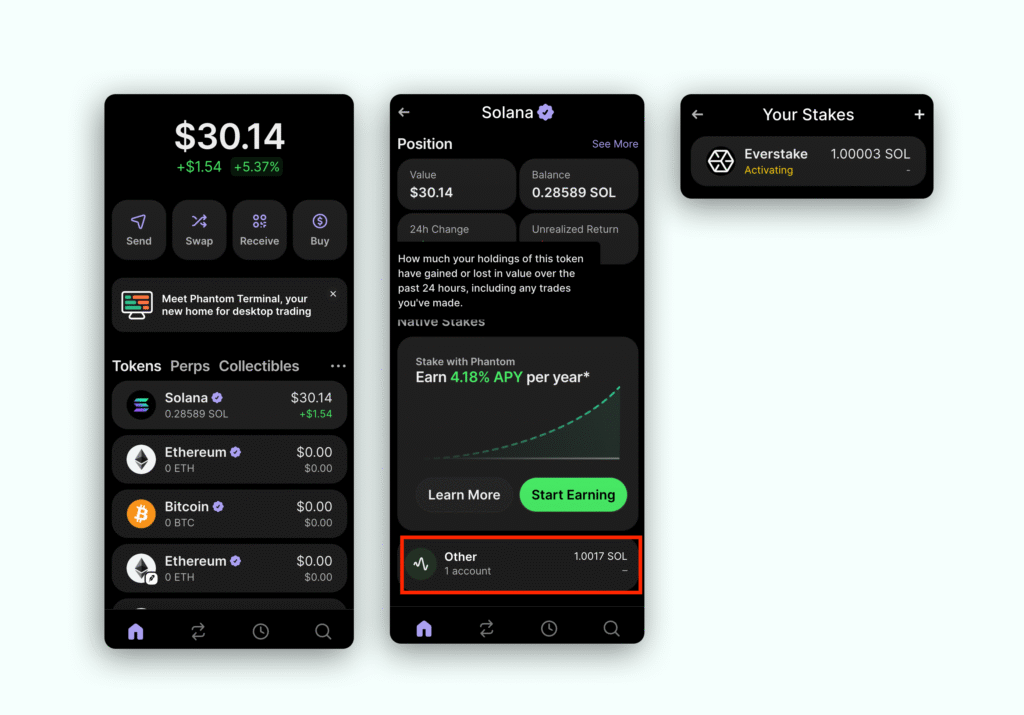
Your stake is being activated and you will start receiving rewards as soon as the current epoch ends.
You can track the epoch length in the Solana blockchain explorer.
How to track staking rewards
Go to Your Stakes section and click on your active delegation.
In this section, you will find information about the state of the delegation and rewards generated. The rewards are being compounded – added to an active stake each epoch.
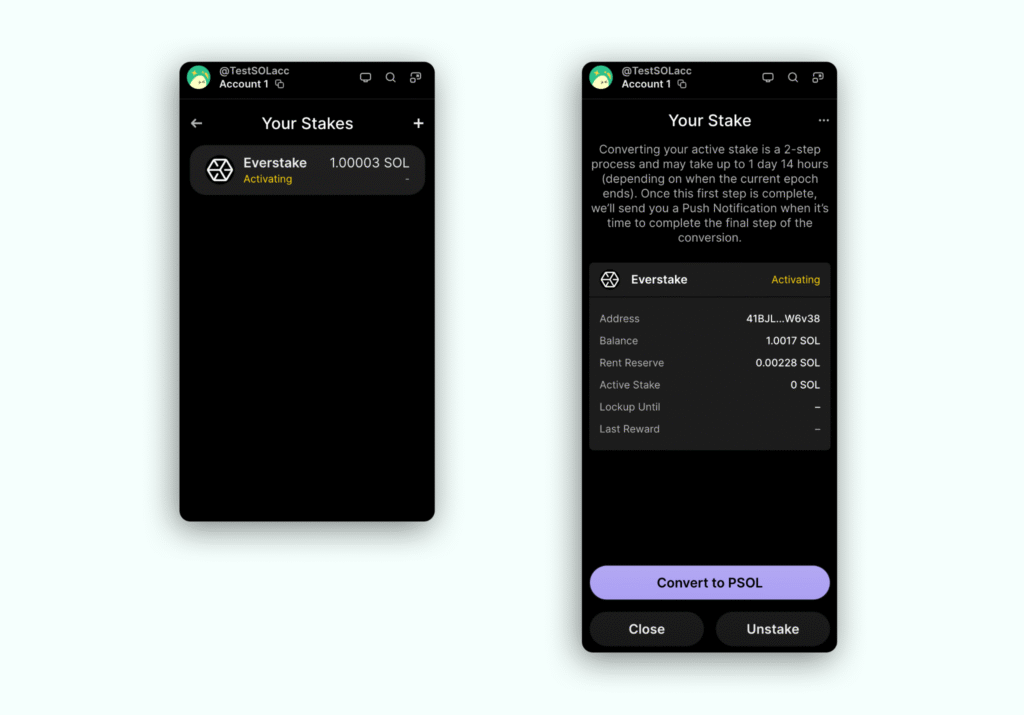
Here you can also undelegate tokens by clicking Unstake.
How to unstake tokens
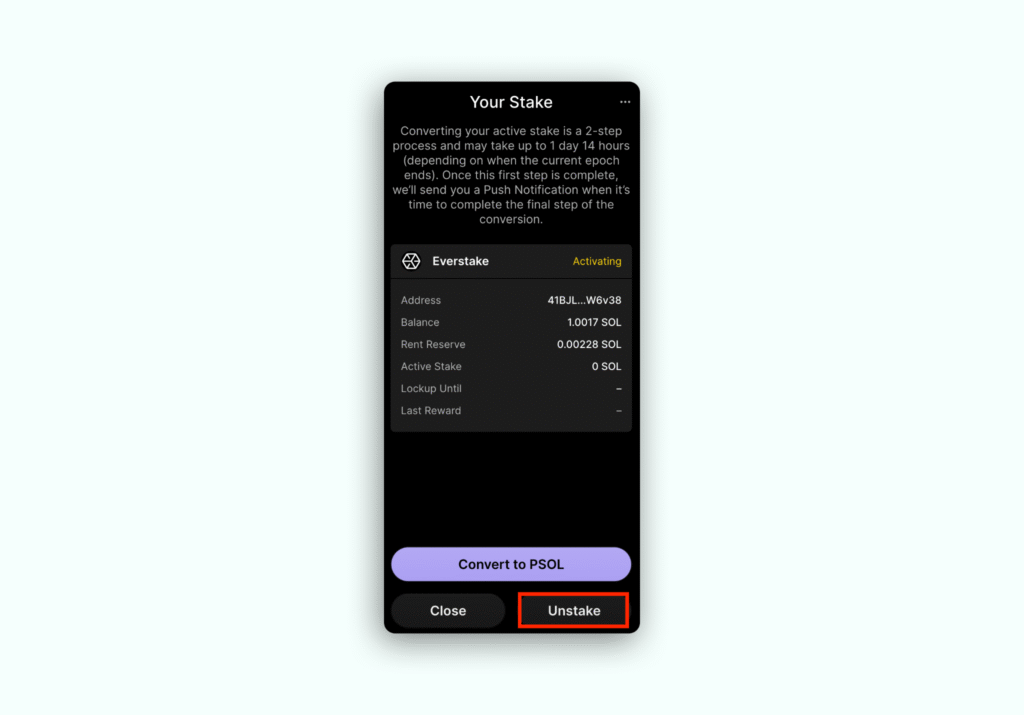
Click on the Solana account on the Home page of the app, to open the staking statistics.
Click on the Other → Your Stakes section.
Click Unstake in the lower right corner of the wallet.
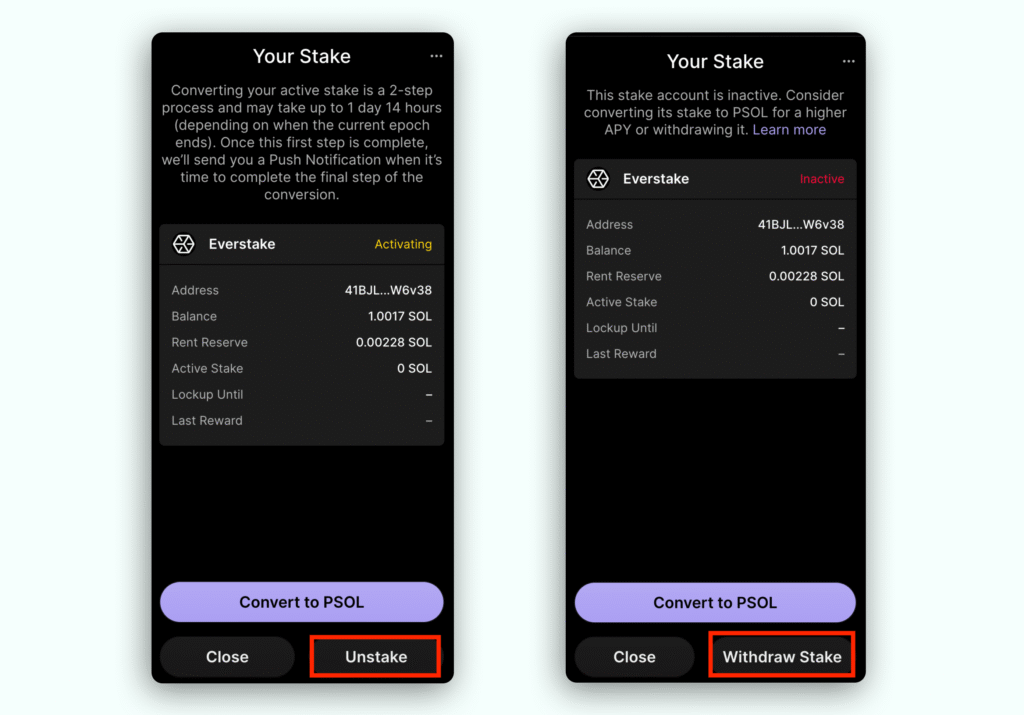
Tokens have been unstaked yet must be withdrawn after the stake will be deactivated at the end of the epoch.
Now, if you check Your Stake stats, you will find that the status of your delegation is Deactivating. This means that the unstake process has not yet been completed, and the tokens are still frozen.
Note: Wait until the epoch ends: your stake is deactivating. Then withdraw tokens. Only after that, you will be able to use the tokens freely. More information can be found in the FAQ section of this Guide.
Please note that rewards will no longer be generated from the moment of unstaking.
Оnce the stake is inactive, click on it again to see the details and choose to Withdraw stake.
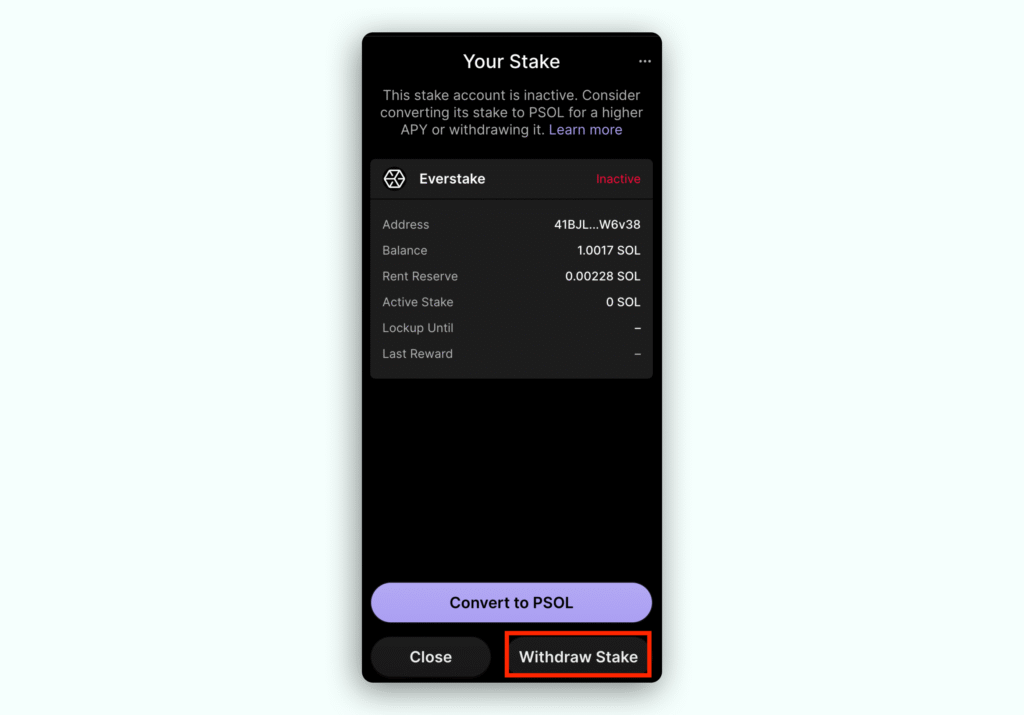
Done, your SOL tokens are now unstaked and available for transferring and other operations.
Solana Staking FAQ
What is an Epoch?
An epoch is a unit of time in computing. It varies slightly but is normally around 2-3 days. When you start staking, the epoch you are in will not accumulate rewards. Check the epoch length at https://solanabeach.io/.
What does activating/deactivating stake status mean?
When you delegate or un-delegate a stake account, the tokens do not change state immediately. Newly delegated tokens are considered “activating” or “warming up”, and are not eligible to get rewards until they are fully activated. Newly un-delegated tokens are considered “deactivating” or “cooling down” and are not able to be withdrawn until deactivated.
The Solana protocol only allows staked tokens to finish changing state at the beginning of a new epoch.
What is the rent?
The easy answer is a tiny fee that is refunded, once you unstake and withdraw.
I just staked all my SOL, but I can’t see my stake
You need to transfer a small amount of SOL to the wallet, so you can still see the stake. Solana’s recommendation is to keep 0.05 SOL in your wallet for future gas fees.
How long to unstake, and do I have to do any extra steps?
It takes an epoch for the stake to get deactivated. After that, you will need to withdraw tokens.
Find more answers on our SOL dedicated page:
Hardware wallet integration
The Phantom extension allows you to connect a Ledger device to make transactions. To learn how to connect a Ledger wallet and use it, visit the official web wallet guide.
Read our other guides on staking Solana:
How to stake SOL (Solana Protocol) in the Exodus desktop wallet: a beginner’s guide
How to stake Solana (SOL) in the Solflare web wallet: a comprehensive guide
Share with your network